How to add booking to your website, Instagram and Google
Where to copy your booking link, how to embed booking in your website and how to add it to Instagram, Google and the other places where customers look for you.
On this page
Customers book where they already look for you: on Google, on Instagram and on your website. Put the same link in all those places, and every booking arrives in one calendar.
Your link
Your booking page is at yourbusiness.ubooq.com, where "yourbusiness" is your business's address, or on your own domain. You copy the link:
- on the Today page, with Copy booking link;
- in Settings → Embedding on your website, with Copy link.
The page opens in the visitor's browser language if you offer it, and otherwise in your business's default language. In Settings → Embedding on your website you can also choose a fixed language, e.g. for the English version of your website. Visitors can still switch the language on the page itself.
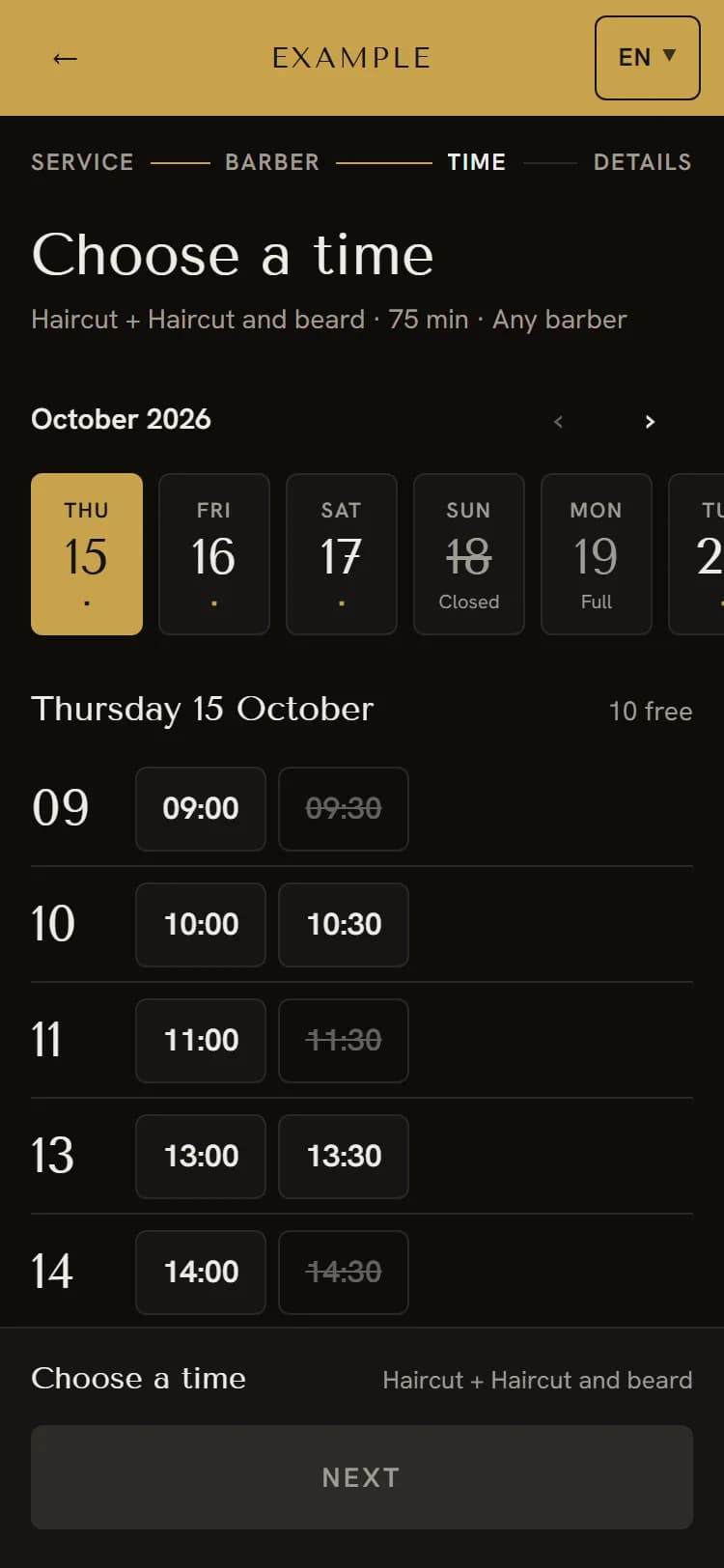
On your own website
You have two options:
- A button or link "Book an appointment" that leads to your booking page. It is the simplest and works in every website builder.
- Booking embedded in the page. Visitors book on your website, without going to another address. In Settings → Embedding on your website, click Copy code and paste it where you want booking to appear. In WordPress, add a Custom HTML block; in other builders, a block for HTML or "embed" code.
Embedded booking adjusts its height to the content by itself and uses no cookies, so it also works in browsers that block them. Under Allowed websites you can enter the addresses where your booking may be shown. An empty field means any website.
Embedded booking works best on a page of its own, e.g. "Booking", which buttons on your other pages lead to. More in the Embedding on your website article.
On Instagram
- The link on your profile. On your profile, tap Edit profile and add your booking link to your links. In your bio, mention that appointments are booked online.
- Stories. When you post free times, e.g. for next week, add a link sticker to the story.
- Messages. When someone asks about an appointment in your messages, send them the link. They pick a time themselves, and you don't have to agree on times by message.
The same goes for Facebook: put the link in your page's details, in your posts and in replies to messages.
On Google
When someone looks for you on Google or Google Maps, they see your Google Business Profile. You can add your booking link to it:
- Open your profile at business.google.com, or search for your business on Google while you are signed in.
- Choose the booking part (Bookings) and add a link.
- Paste your booking link and save.
The link shows on your profile and leads straight to your booking page. Google's own booking button inside Google is only for Google's booking partners, so this link doesn't give you that.
When customers come through Google, it pays to collect reviews too. ubooq can send customers a review request after their appointment, which you turn on in Settings → Google reviews. More in the Google reviews article.
In other places
- in your email signature and in your out-of-office reply;
- in messages to customers on WhatsApp, Viber or by text, e.g. when they ask whether you have a free time;
- in your reply to a missed call.
Your own domain
Your booking can also be at an address of your own, e.g. booking.yourbusiness.com. You add the domain in Settings → Domains with one DNS record, and the HTTPS certificate is issued by itself. Once you set it as the main domain:
- links in emails and the embed code use it;
- the
yourbusiness.ubooq.comaddress redirects to the new one, so links you have already posted on Instagram and Google keep working.
The old embed code also keeps working, but we recommend replacing it with the new one. If you are still planning your own domain, set it up before you post the link everywhere. More in the Your own domain article.
Check it as a customer
Open the link on your phone, as a customer would, and check the services, prices and free times. If you want to go through a whole booking, book an appointment in your own name and cancel it with the My appointment link from the confirmation.